
AMZTarget helps Amazon sellers track keyword ranks, price, BSR, and listing changes, and send alerts. Reverse ASIN suggests keywords from a product page.
On every cabinet page, the ? control opens a short note for that screen. This page is the full guide. Legal pages (terms, privacy, refunds) are separate.
Contents
- First steps
- Top menu
- Product list
- Product overview
- Variations
- Keywords
- Analytics
- Price timer
- SKU
- Account alerts
- Product alerts
- Listing monitoring
- Check schedule
- Reverse ASIN
- Reverse ASIN results
- Plans
- Profile
- AI access
- Marketplace
- Support
- New support ticket
First steps
- Set the default Amazon marketplace in Profile. It prefills new ASINs and Reverse ASIN, and it drives the clock in the header.
- On Products, add an ASIN and choose the marketplace to analyze. That choice stays on the product and its keywords.
- Open the product and add keywords.
- Wait for the next scheduled check — ranks do not appear instantly.
- Optionally choose where to send alerts: email or Telegram.
Top menu
- Products — your ASIN list and the way into a product.
- Reverse ASIN — keyword ideas from a listing.
- Alerts — account-wide channels.
- Support — tickets to the team.
- Plans — limits, checkout, cancel, refund.
- How to use — this guide.
- Profile — language, password, the default marketplace, Merchant ID, and an API key for read-only AI access. The current plan and, for paid plans, when the paid period ends.
Product list
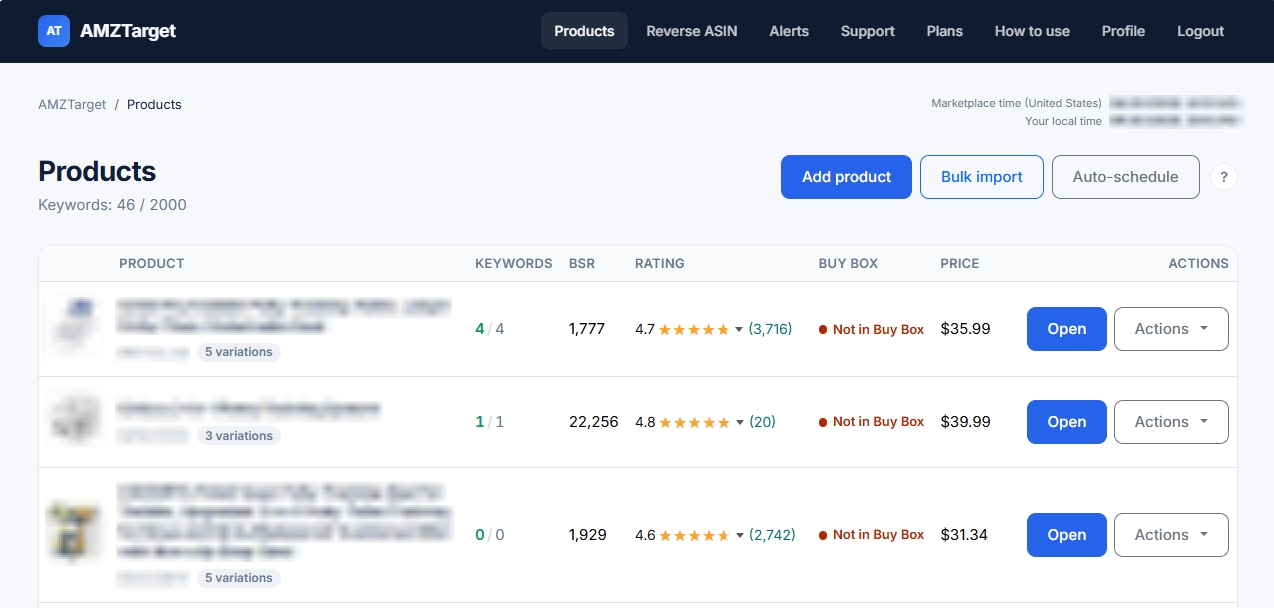
This is the home screen. Each row is one ASIN.
- Add product — one ASIN and its marketplace. The marketplace cannot be changed later. Keep Variations from listing checked to pull sibling ASINs from the Amazon page (color, size). Details: variations.
- Bulk import — several ASINs at once (within plan limits), all on the marketplace you pick in that form. The same variations checkbox applies to every ASIN in the list.
- Auto-schedule — how many times per day we check all products and keywords.
- The star pins a product to the top of the list (same idea as keyword stars). Click it again to unpin.
- Click Product to sort by name. Starred products stay at the top regardless of name order.
- Select several products with the checkboxes (the header box selects every row) to set a schedule, stop or resume monitoring, or delete them. Confirm before the change is applied to the whole group.
- The row menu: keywords, charts, alerts, price timer, schedule, Update now, stop monitoring, delete.
Update now refreshes the product page once per day. Keyword ranks follow the schedule, not this button.
Product overview
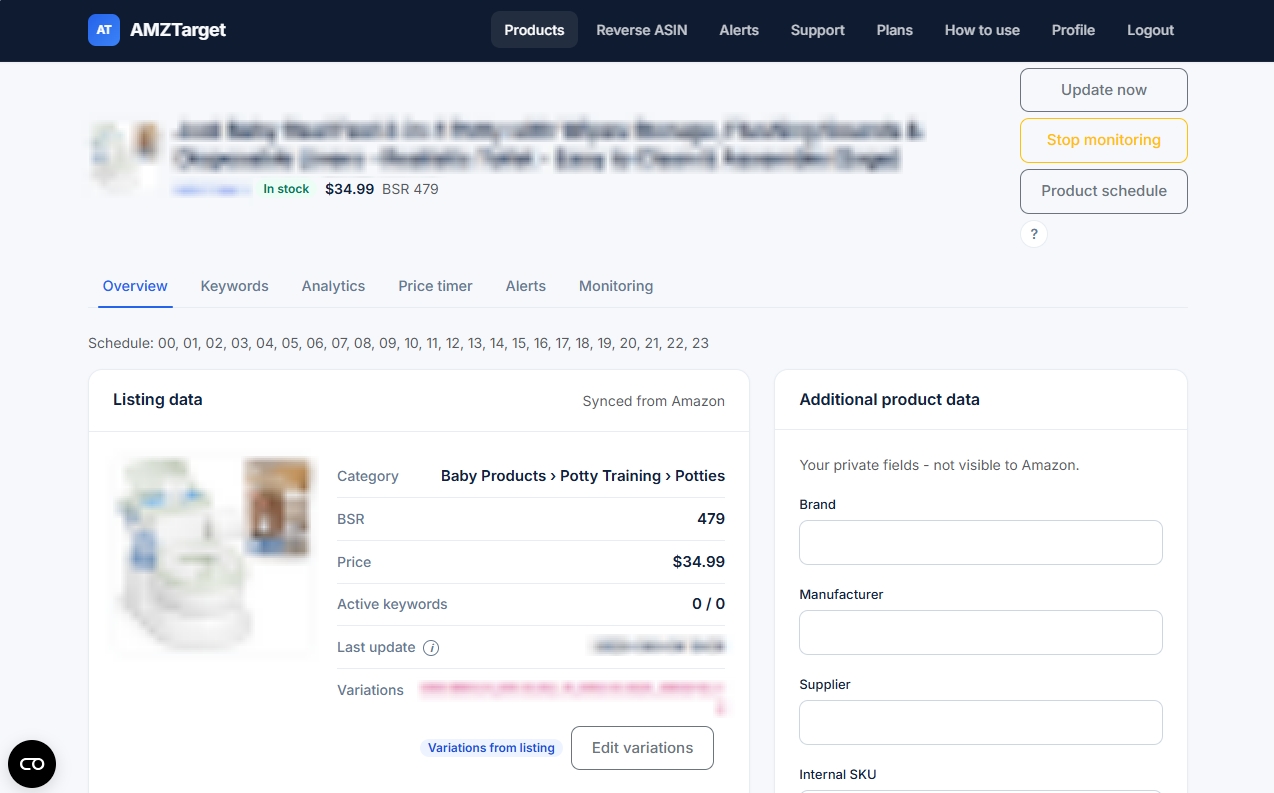
Product tabs: Overview, Keywords, Analytics, Price timer, Alerts, Monitoring. The ? sits next to the tab actions.
Overview shows a listing snapshot: name, price, BSR, stock, reviews. The Variations list and Edit variations live here too. You can save your own fields (SKU, notes) below.
- Update now — product page, once per day.
- Stop monitoring — pauses checks, alerts, and the repricer until you resume.
Variations
On Amazon one listing is often a family: color, size, pack size. Each option has its own ASIN. Search results may show a sibling ASIN instead of the one you added.
The variations list tells us to count a keyword rank if any ASIN from that family appears in search — the parent or a child. Without the list, rank can look like “not found” even though shoppers see your product in another color or size.
Variations are not extra rows in the product list and not a separate keyword set. The listing card, alerts, and the plan slot belong to the product you added. If you need to track one variation as a full product (its own keywords, price, alerts), add that ASIN as its own product.
How to set variations
- When you Add product or Bulk import, leave Variations from listing checked. After the first Amazon page load we fill in the child ASINs.
- If you clear the checkbox, enter child ASINs yourself, comma-separated (10 characters each).
- Later you can edit the list on the product overview: Variations → Edit variations. You can turn the same checkbox on or off there.
Until the page is loaded, the field may say “Will be loaded automatically from the listing”. Wait for the next scheduled check or press Update now.
Keywords
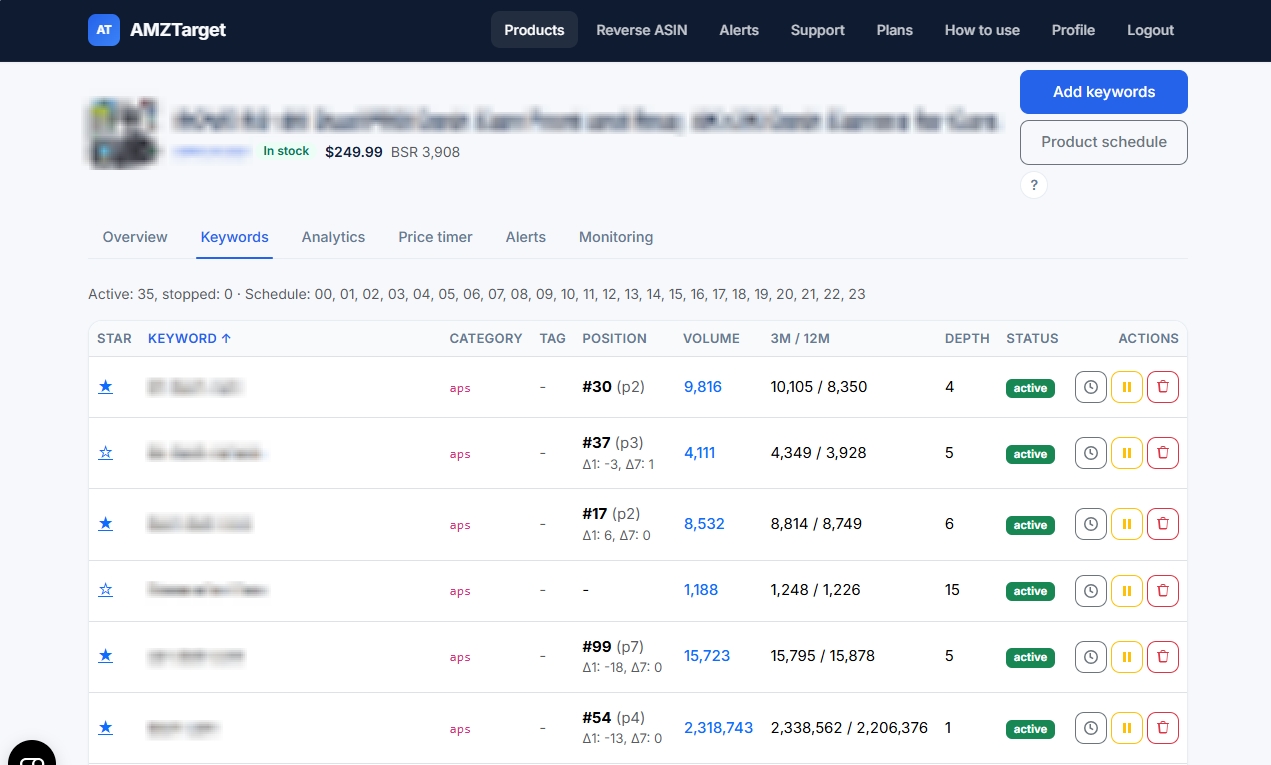
Add the search phrases shoppers type on Amazon. We check your ASIN rank on the schedule you set.
- The star marks priority keywords. They stand out in the keyword table. On Analytics, starred phrases are selected on the Rank chart by default (or the first five if none are starred).
- Start / Stop turns tracking on or off without deleting the phrase.
- A keyword can have its own check hours. Otherwise it follows the product schedule.
- Select several phrases with the checkboxes (the header box selects every row) to start, stop, delete, or set a schedule for all of them at once.
Table columns
- Position — where your ASIN sits in Amazon search for this phrase. The page is shown next to it (
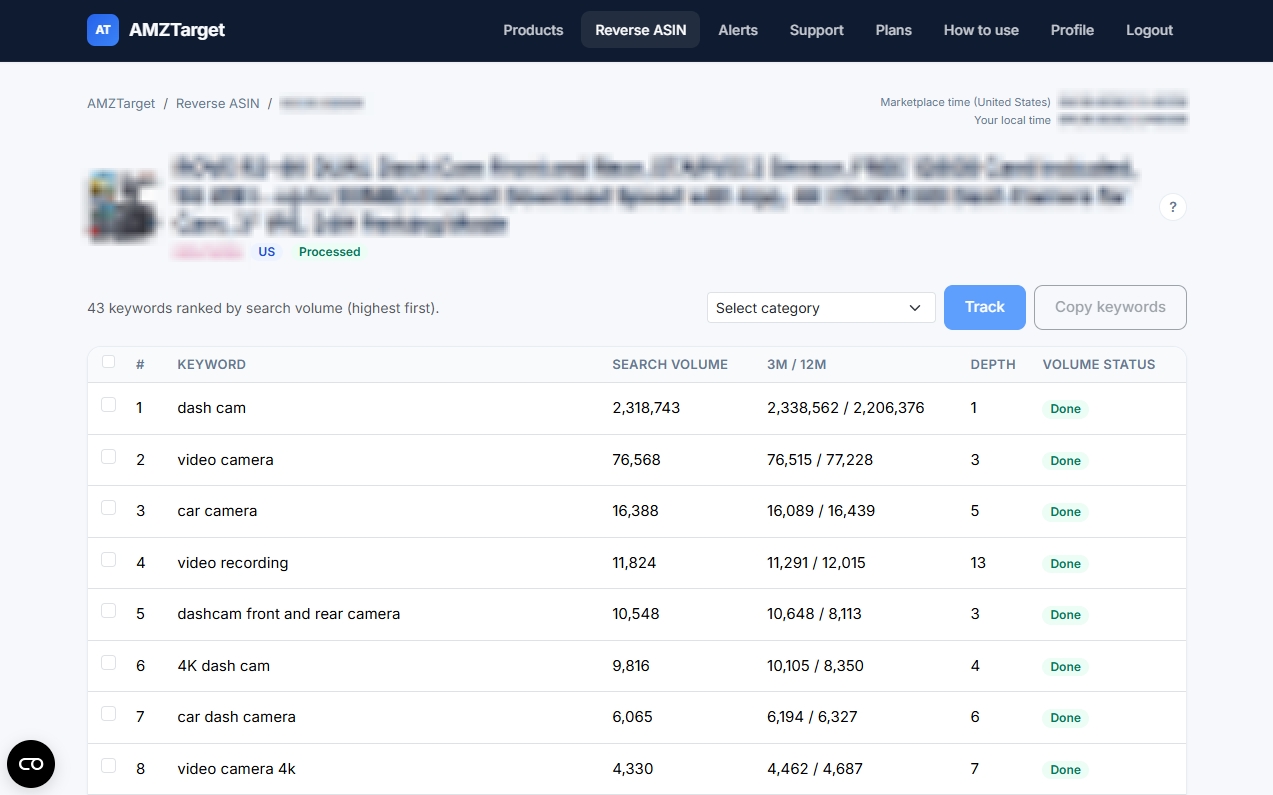
p2means page 2). Δ1 and Δ7 are the change over one day and seven days. “Not in search index” means Amazon has no results for this phrase (with your ASIN). A dash means there is no completed check yet, or the listing was not found in the first search pages. While a new check is running, the last completed result stays on screen. - Volume — estimated how many times shoppers search this phrase on Amazon each month. If volume for that phrase is already loaded (for example from Reverse ASIN), it appears immediately. Otherwise it may show “Pending” until the data arrives. Click the number for more detail.
- 3m / 12m — average monthly search volume over the last 3 months and the last 12 months. If 3m is clearly higher than 12m, demand has been rising; if lower, it is falling or the phrase is seasonal.
- Depth — how soon the phrase appears in Amazon’s search-bar suggestions. A smaller number means the suggestion shows up earlier (a more familiar query).
The Reverse ASIN results table uses the same Volume, 3m / 12m, and Depth columns.
Keyword limits are shown in the product list header and on the Plans page.
Analytics
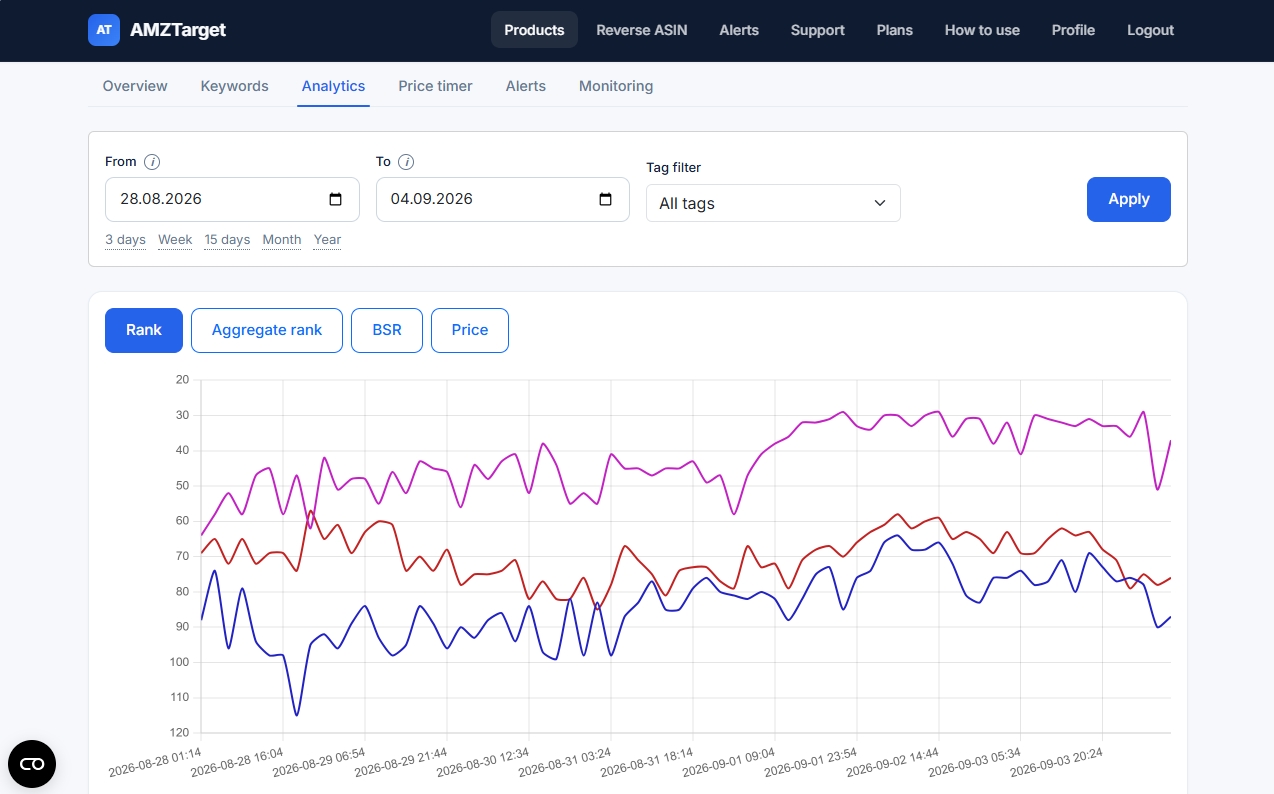
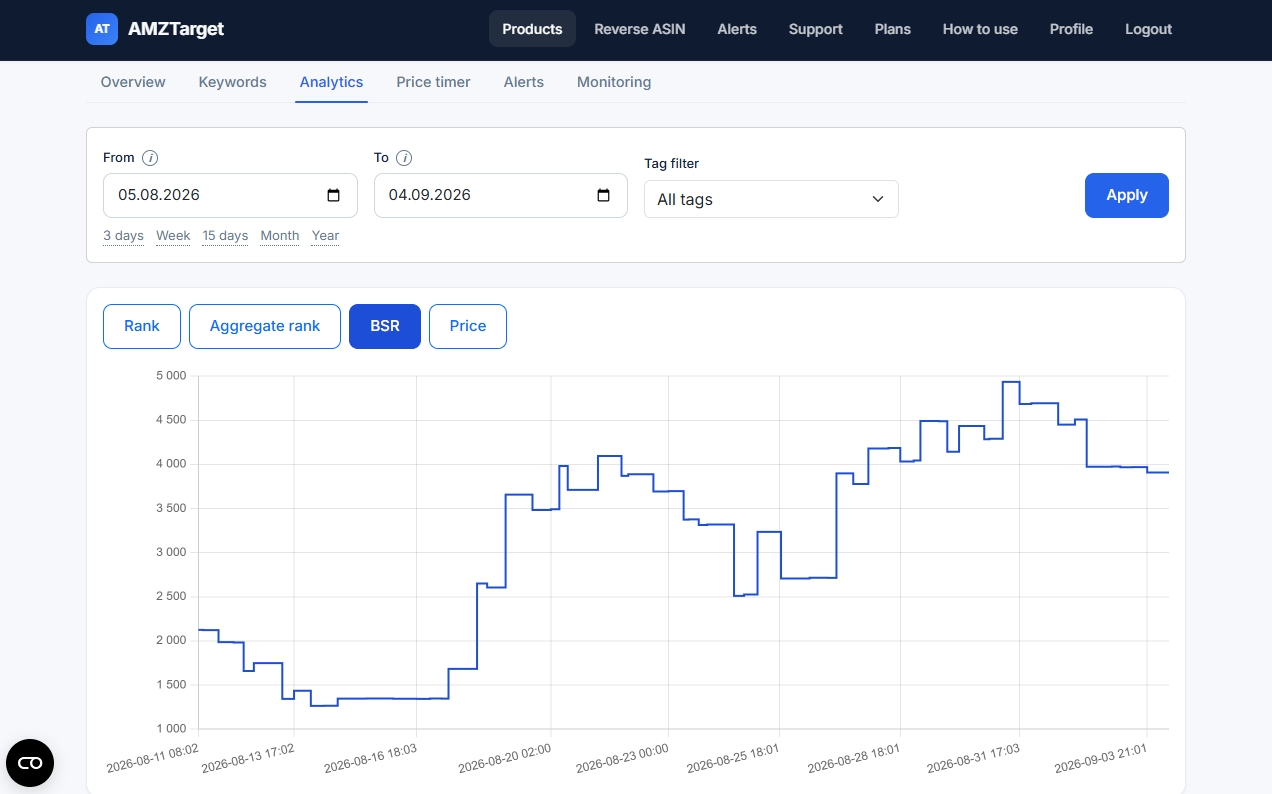
Charts show how rank, price, and BSR changed over the dates you pick. Those dates use this product’s marketplace time zone, not the clock in the header. Choose the chart type and keywords, then Apply.
Keywords with a star (from the Keywords tab) are selected on the Rank chart by default. If none are starred, the first five phrases in the list are selected. Change the checkboxes and press Apply to keep your choice.
Empty charts mean we have not collected enough checks yet — wait for the next schedule.
Ranges longer than three days of hourly checks stay at most 72 points: rank charts use averages; price and BSR keep the real high and low measurements in each interval.
Price timer
This tool can change your Amazon price on a clock or follow a competitor. Connect your seller account first.
- Schedule mode: a future date, time, and price in your seller account’s marketplace time (Profile). That clock is separate from the marketplace used to analyze the product. Only upcoming entries are listed.
- Competitor mode: we watch another ASIN and adjust your price by the delta you set, within min/max. On/Off pauses execution without deleting settings.
- Only one mode is active. Saving a schedule clears competitor settings, and the other way around.
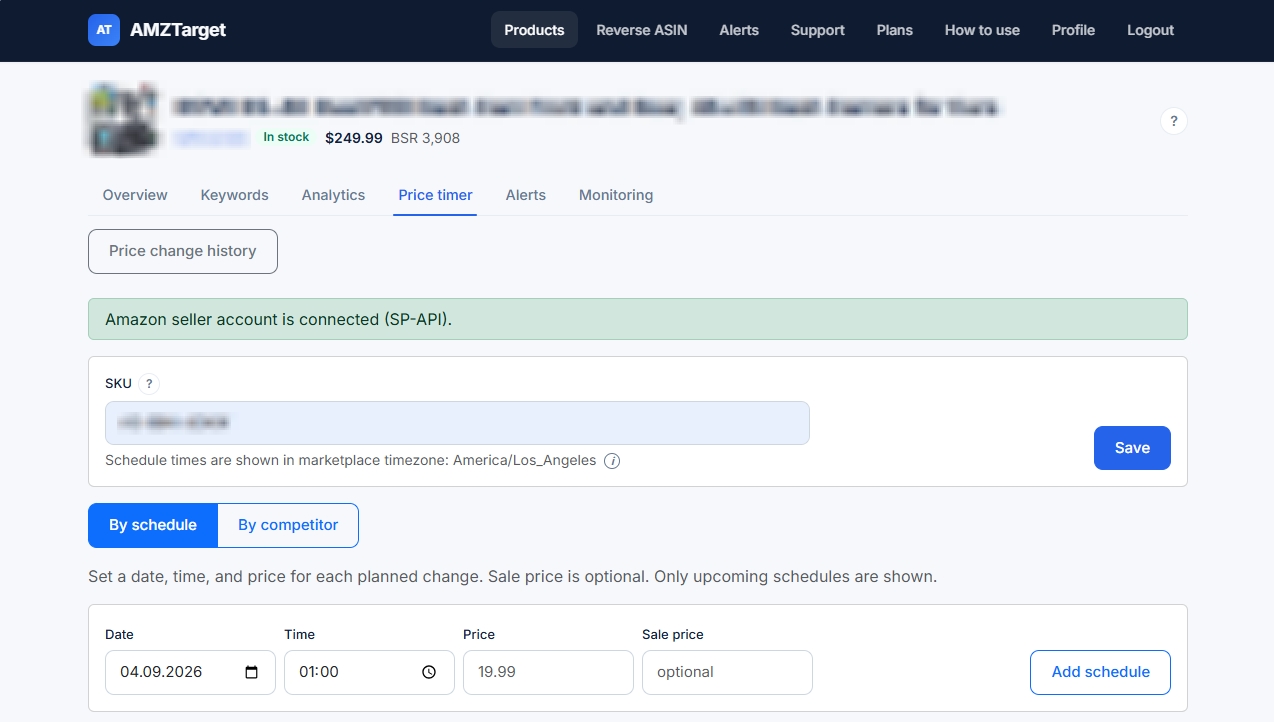
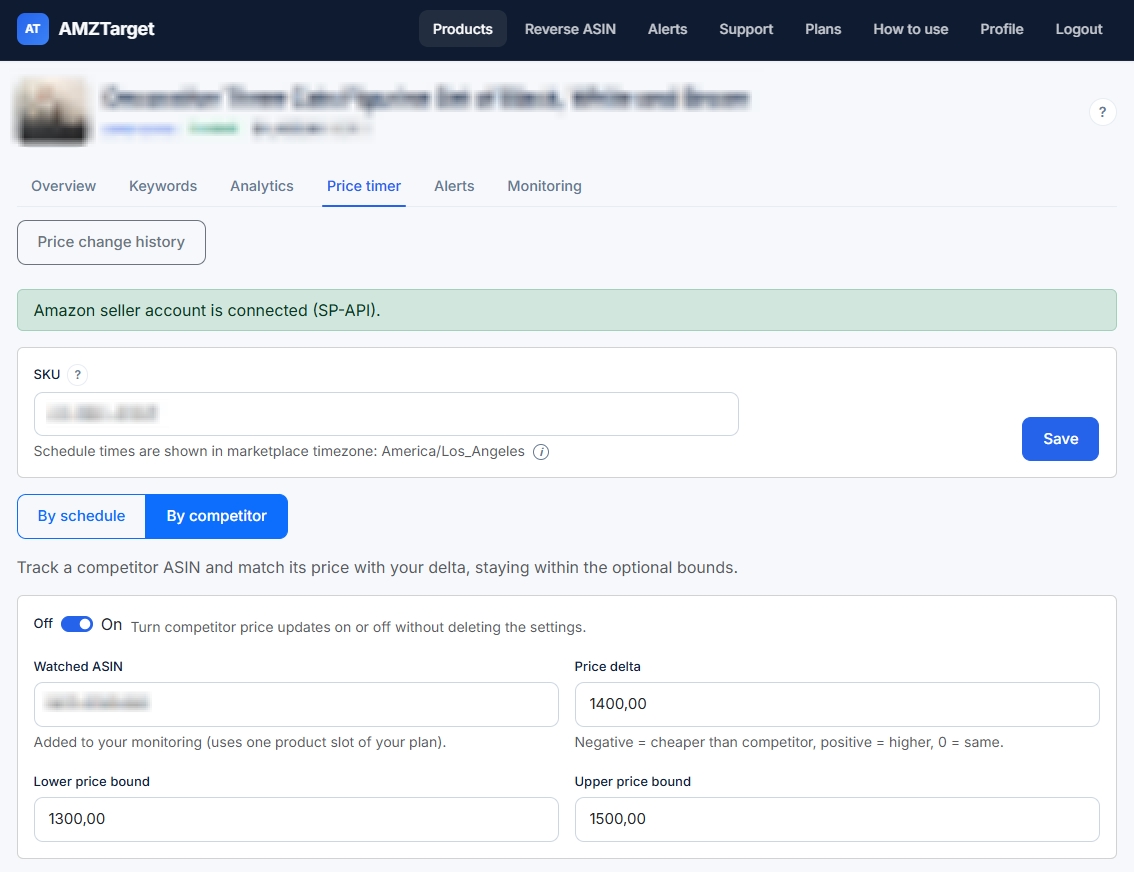
SKU in Price timer
SKU (seller SKU) is your offer identifier in Amazon Seller Central. Amazon uses it to know which listing’s price to change. It is not the ASIN: the ASIN identifies the product page, the SKU identifies your inventory record. It is also not Internal SKU on the product overview — that field is only your private note and is never sent to Amazon.
Price timer sends the new price to Amazon through SP-API using this SKU. A wrong or mistyped value means the price will not change.
Where to copy it
- Sign in to Amazon Seller Central.
- Open Inventory → Manage Inventory.
- Find this product. The SKU column sits next to the name. Copy the value exactly (letters, digits, hyphens).
- If the table does not show SKU, open the listing — it is in the offer details.
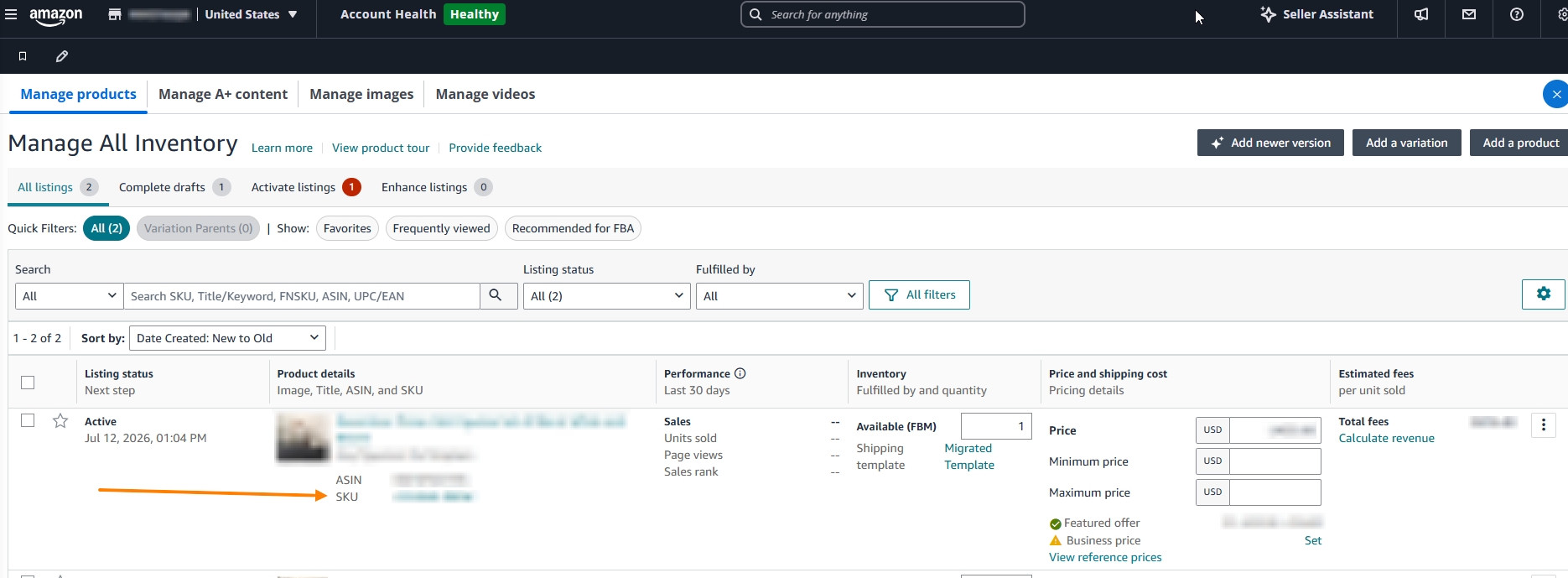
One ASIN can have several SKUs: FBA and FBM, or different variations (color, size). Enter the SKU of the offer whose price you want to change.
Account alerts
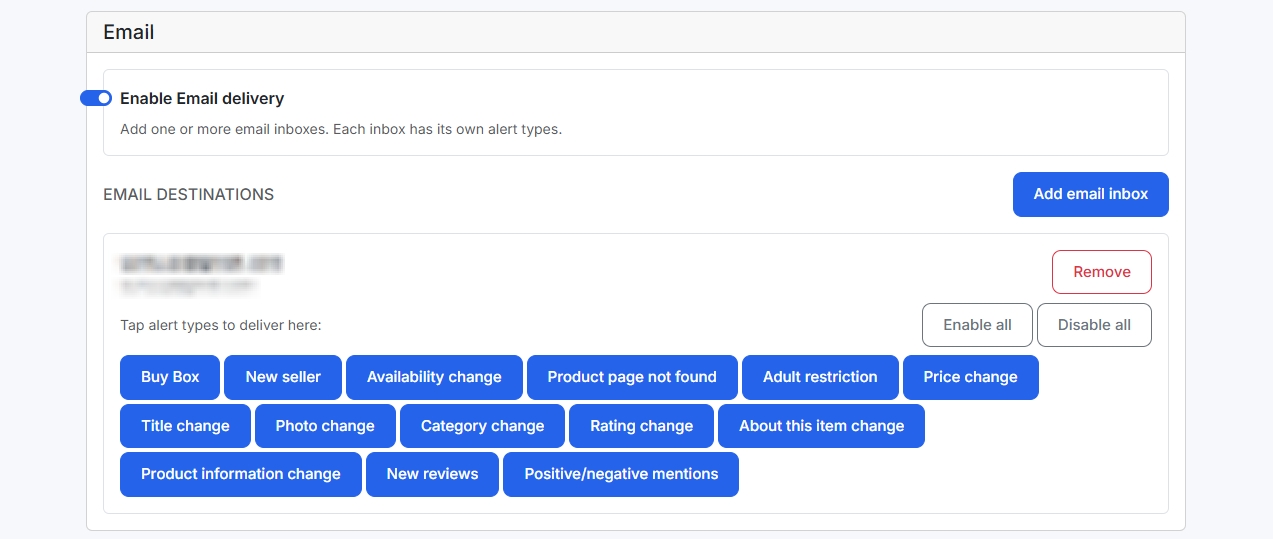
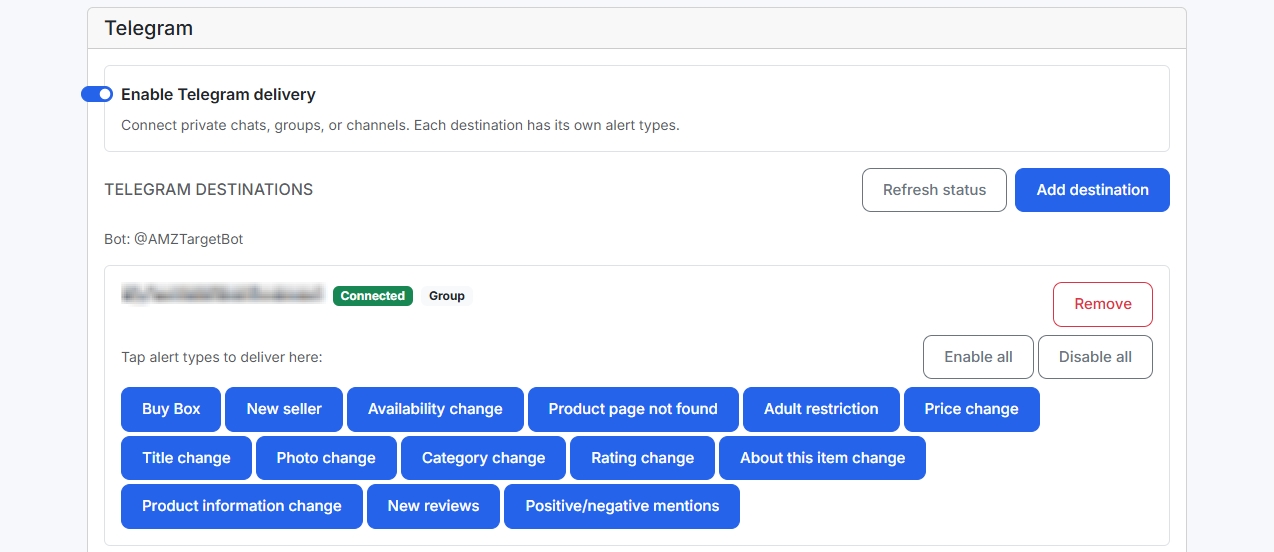
Alerts without an ASIN in the URL is account-wide.
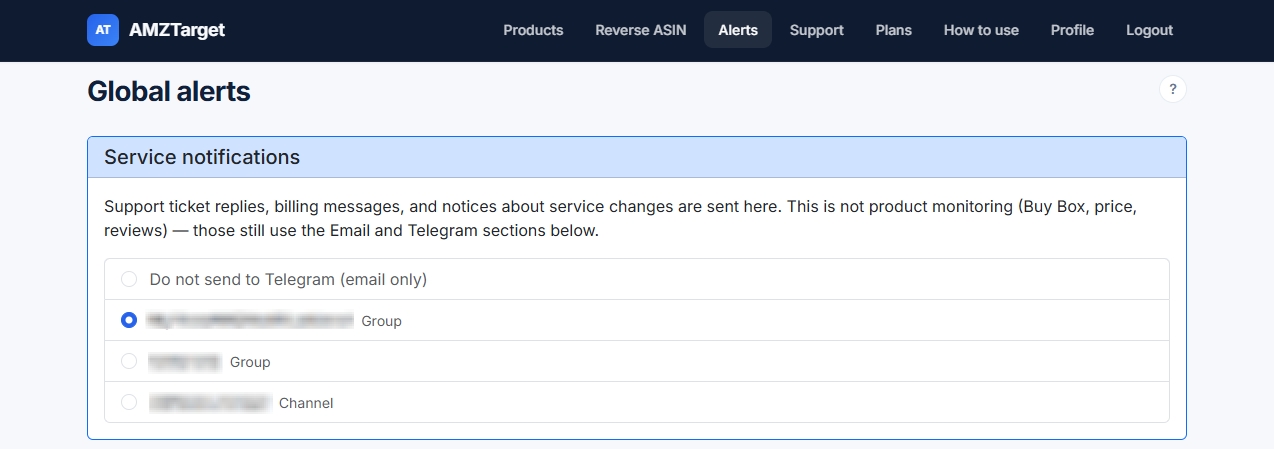
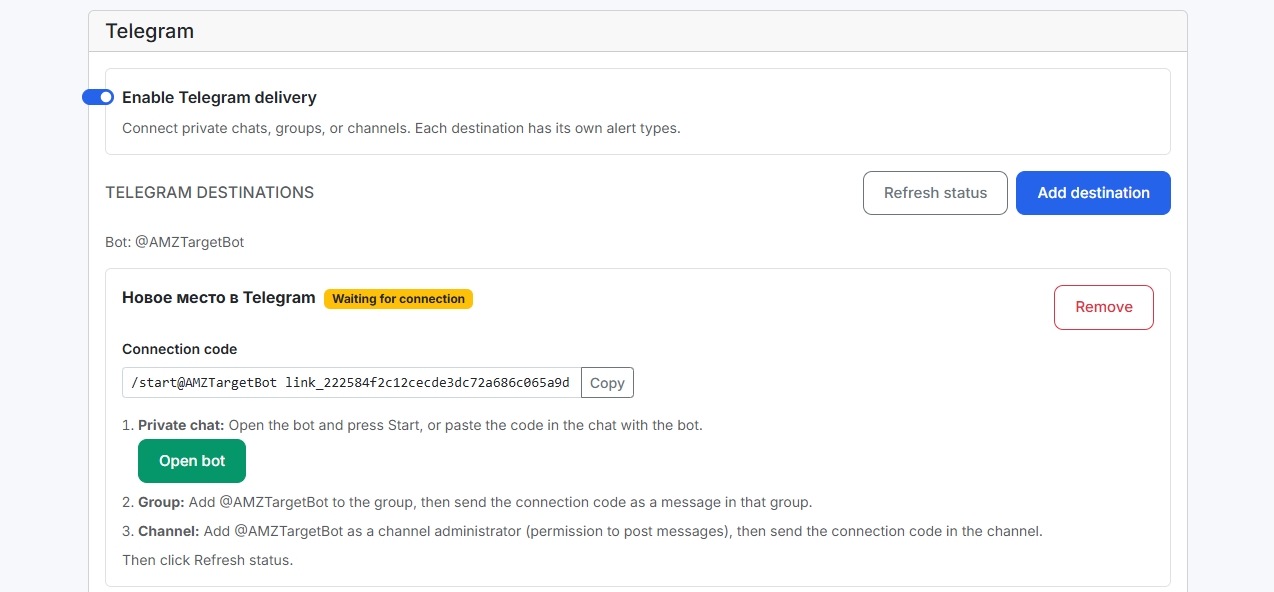
Add email addresses and Telegram chats. Then choose which events (price, Buy Box, reviews, and others) go to which channel. These settings apply to every product that has no channels of its own.
Service notifications are only for support replies and billing — not product monitoring.
Product alerts
Opening alerts from a product (?asin=) lets you attach channels to that ASIN only. If none are attached, the account settings apply.
Reset returns the product to the global settings.
Listing monitoring
A timeline of changes we detected on the Amazon product page (title, bullets, price, stock, and more). Filter by change type. If the list is empty, wait for the next product update.
Check schedule
Hours use that product’s marketplace time. The clock in the header follows the account default and can show a different zone. A bulk schedule stores the same hour numbers, and each product runs them in its own zone.
- Auto-schedule — the same number of checks per day for every product and keyword.
- Product schedule — hours for that ASIN and its keywords.
- Keyword schedule — one phrase only.
Your plan limits how many checks per day you may set.
Reverse ASIN
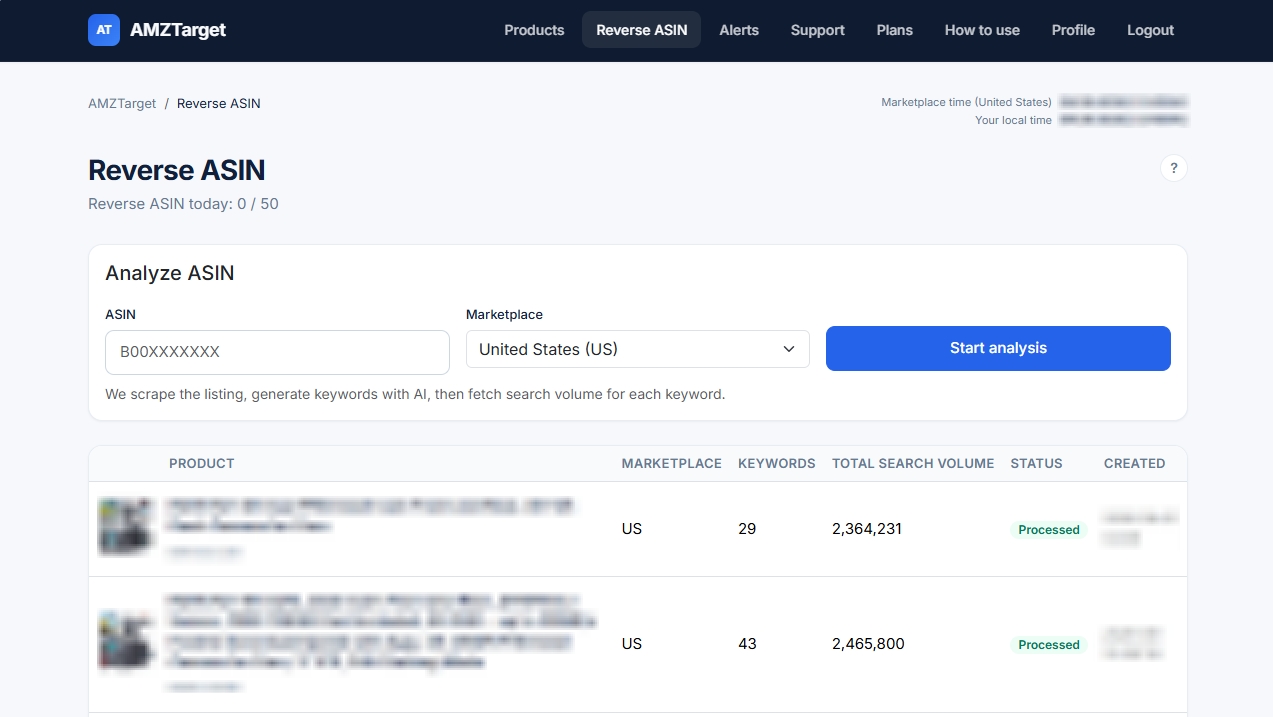
Enter any Amazon ASIN and the listing marketplace. We read the listing and suggest keywords. Search volume loads for close matches and for broader ones. Phrases that do not fit the product are left out.
Daily quota depends on your plan.
Reverse ASIN results
A keyword table. Rows that already have volume are sorted by it, highest first. Pending means that volume is still loading.
Phrases marked Broader are wider matches: a category, a use case, an accessory, or a close variant. Hover the label to read that explanation. Their search volume loads with the other phrases. Show broader hides those rows. A phrase with no search volume is removed. Phrases that do not match the product are not listed.
Select phrases with the checkboxes (the box in the header selects every row). Choose a search category (same list as on Keywords). Copy keywords puts the selected phrases on the clipboard, one per line. Track adds them to rank tracking for this ASIN — the same as adding keywords on the product Keywords page. If search volume for a phrase is already loaded, it is copied into tracking immediately. If the product is not in your tracking list yet, it is created on this Reverse marketplace. Check hours come from the account auto-schedule and run in that product’s time zone. You will be asked to confirm before anything is added.
Plans and limits
Each plan limits how many products and keywords you may track, how many Reverse ASIN runs per day, and check frequency. If a paid plan ends, extra products are stopped, extra keywords are paused, and check frequency is reduced to the new plan — data is not deleted.
Paid checkout is processed by Paddle. From this page you can cancel at period end or request a refund. If a button is blocked, you have reached a limit — upgrade or remove extra items.
Profile
Interface language, password, and the default Amazon marketplace for new ASINs and Reverse ASIN. Merchant ID helps us detect whether you own the Buy Box on the product page. Paid plans also show when the current paid period ends.
Paid plans can add sub-accounts — extra seller logins under the same subscription.
AI access
In Profile, AI access creates a key for Cursor, Claude, or another app that supports a remote MCP connection. The key reads this account only: products, keyword positions, price and BSR history, listing changes, and Reverse ASIN reports. It cannot add products, change alerts, or run the repricer.
Give the key a name, then copy it immediately. It is not shown again. You can keep up to five keys and revoke one at any time. Paste the connection example from the same card into the AI client and replace amz_your_key with your key. Ranks and listing changes are the last finished check, not a live page.
Marketplace
This is the default marketplace for a new ASIN and for Reverse ASIN. The header clock uses its time zone. Each product keeps the marketplace chosen when it was added; rank checks and that product’s schedule use that zone, not this default. Changing the default does not move products you already added. 12-hour or 24-hour only changes how hours look — not how often we check.
Available marketplaces: Amazon.com (USA), Amazon.co.uk (UK), Amazon.ca (Canada), Amazon.com.mx (Mexico), and Amazon.com.br (Brazil).
Support
Use tickets for account problems, billing questions, or something that looks broken. Replies appear in the ticket list; we also email you. Optional: pick a Telegram chat for service messages in Alerts.
New support ticket
Write a short subject and describe what you expected versus what happened. You may attach one screenshot.