
Amazon listing changes: catch new titles, prices, and images in time
Imagine that sales have dropped even though no one touched your ad campaigns. You open the Amazon storefront and are surprised to find that the main title is shorter, the primary image has been replaced, and the price is nothing like the one you set. The edit may have been planned, caused by a random error, or made with some “help” from Amazon's algorithms. But the real questions are: when exactly did it happen, what was on the page before, and how is it affecting orders now?
Listing monitoring replaces the search for someone to blame with a clear, fact-based process. It records the exact time of the change, saves before-and-after versions, and sends an alert to Telegram or email so you can immediately restore the previous version.
Why does checking listings manually not work?
Checking a listing by eye means relying on luck. At 9:00 a.m. the page looks right, but by 2:00 p.m. the title may be broken or the Buy Box may be gone.
Here are 5 reasons why spreadsheets and screenshots lose to automation:
- No consistency. Listings are checked from time to time - usually only after sales have already dropped.
- Memory fails. It is hard to remember the exact order of the bullets, whether words in the description were rearranged, or whether the same image was used as the main one.
- Screenshots are inconvenient. No one wants to search through folders of images every day to spot a difference.
- Seller Central can be misleading. Your seller account may show the content as complete while shoppers see a broken page on the storefront.
- No urgency. If you do not open the dashboard, you do not learn about the problem. You need push notifications on your phone.
Which listing changes should you track first?
Do not monitor everything at once. Start with the most critical fields:
- Title. If a keyword disappears from the title, the product can immediately lose organic visibility. Compare the old and new versions to see which phrase needs to be restored.
- Main Image. The primary image directly affects CTR in search. If Amazon's algorithms replace it with an old or low-quality render, clicks will drop right away.
- Price and Buy Box. A price change affects your margin and can push you out of the Buy Box (purchase block). AMZTarget records every price movement.
- Bullets and product details. A missing size or product detail leads to negative reviews and returns.
- Availability (Stock) and number of sellers. A new seller on your listing (a hijacker) or a sudden Out of Stock status requires an immediate response.
How do you turn an alert into a decision instead of panic?
When you receive a listing change notification, follow these steps:
- Check the live storefront. Open the Amazon listing for the exact marketplace where the alert was triggered.
- Assess the event. Was it a planned promotion, an action by your team, or an unexpected error?
- Check related metrics. If the title changed, check keyword rankings. If the image changed, look at CTR in your advertising dashboard.
- Make a decision. Restore the previous content through Seller Central, contact Amazon support, or keep the new version if it was a planned test.
How does AMZTarget track listing changes?
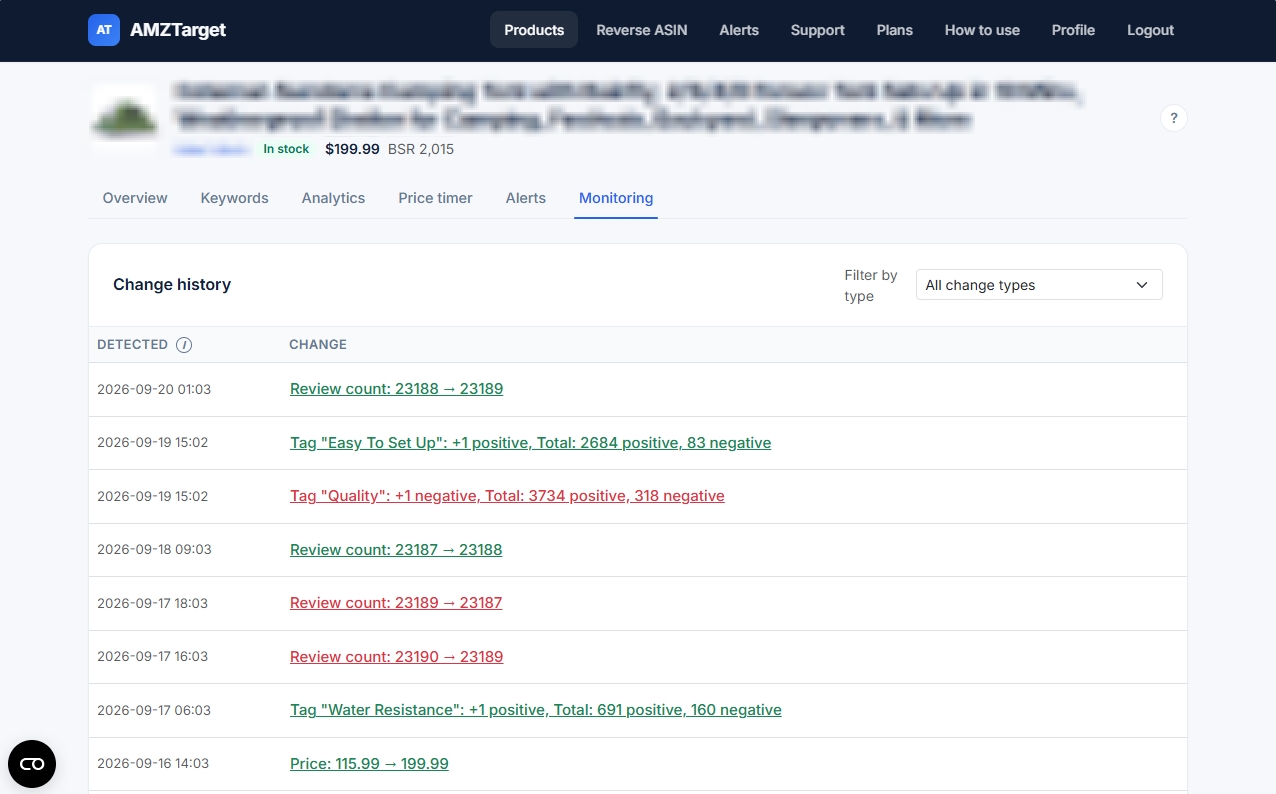
After you add an ASIN, the service takes a “reference” snapshot of your listing. During later checks, it compares the current state with this snapshot. The full history is saved in the Monitoring tab:
- Text (Title, Bullets): highlights what was removed and what was added.
- Images: saves direct links to the old and new images.
- Price: records the old and new values.
Notifications arrive immediately in Telegram or by email. You can assign alerts to a specific product: for example, send important problems with your flagship product to the team's work chat and minor changes by email.
During the free trial (the first 14 days), the service can check a listing up to 12 times per day. On paid plans, it can check up to 24 times per day (once every hour).
Do you need access to Amazon SP-API?
Regular scheduled monitoring of a public listing DOES NOT require access to Seller Central through SP-API. You can safely track both your own products and competitors' listings.
An SP-API connection is required only for Price Timer and repricing (automatically changing prices according to set rules).
A 7-step test: set up monitoring
Choose one important ASIN and run a short test to establish your monitoring process:
- Step 1. Create a baseline snapshot. Sign up for AMZTarget, add the ASIN, and choose the marketplace for that product. Enable Variations from listing if the product comes in different sizes or colors.
- Step 2. Set up alert channels. Connect the Telegram bot or enter an email address. Select only critical events (title, price, image, Buy Box, availability) to avoid flooding the chat.
- Step 3. Choose the check frequency. Set a check schedule in settings. Use the higher frequency during the first 14 days to test your response.
- Step 4. Add 5 keywords. Use the free slots for your main keywords in the Keywords tab. This will help you see how content changes affect rankings.
- Step 5. Review the first event. When the first alert arrives (or after making a test price change), check how quickly the team saw the message and understood the difference.
- Step 6. Review the history in the “Monitoring” tab. Open the filters, review the edit history, and compare it with the BSR and price charts in “Analytics.”
- Step 7. Document the procedure. Decide who on your team responds to price alerts and who handles content and images.
Key takeaway
Stop guessing why sales have dropped. Make every listing change transparent, with an exact time, before-and-after versions, and a clearly assigned person responsible for fixing it.
Start free without a credit card · Compare plans · Listing monitoring · Schedule · Alert settings · Keywords